Overseer
Why This Exists
Nothing is more annoying than the shrug.

Something's broken in production. You ask what happened. You get a shrug. You ask when it started. Another shrug. You ask where the logs are. Shrug. You ask how we can fix it. The biggest fucking shrug you've ever seen.
If something is wrong, I want to know where, when, how, why, and how can we reconcile it. Christ! Is that too much to ask?
It shouldn't be so fucking hard to know what happened, when, where.
You work with Datadog until management decides to migrate to New Relic. Or you're a solo dev who just wants to see if your background jobs are running without paying enterprise prices. Overseer solves this: centralized monitoring that you own, built into every Aegis Stack project from day one.
What It Is
Overseer is a health monitoring dashboard built into your Aegis Stack application. It provides real-time visibility into component and service health through a web UI.
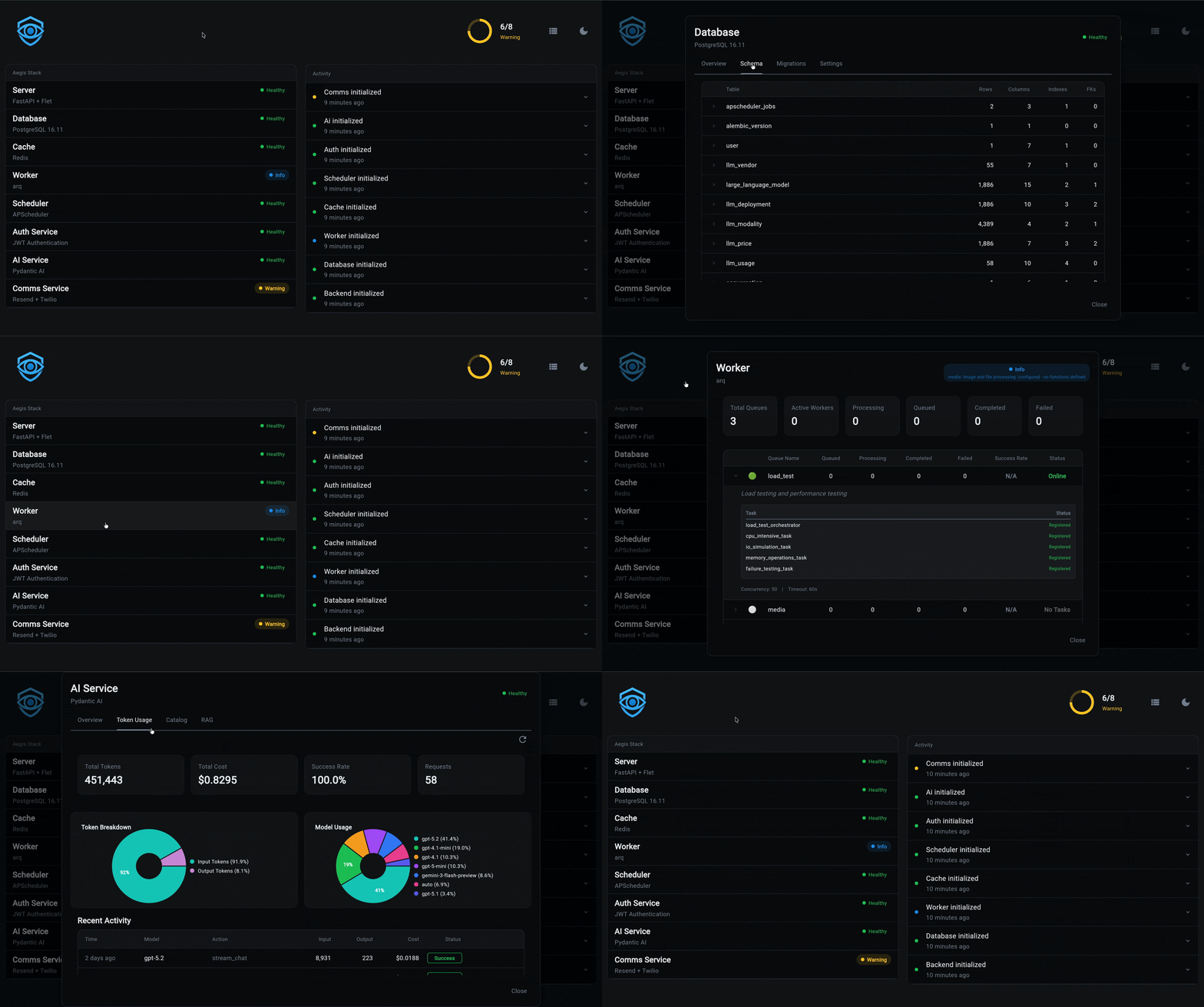
The dashboard displays:
- Component Cards: Backend, Database, Worker, Scheduler health
- Service Cards: Auth, AI, Comms, Insights health (when included)
- Header: Overall health summary and theme toggle
- Auto-refresh: Polls health endpoint every 30 seconds
Current Capabilities
- Component health monitoring (Backend, Database, Worker, Scheduler)
- Service health monitoring (Auth, AI, Comms, Insights)
- System metrics (CPU, memory, disk usage)
- Status hierarchy (Healthy, Warning, Unhealthy, Info)
- Web dashboard with auto-refresh (30-second polling)
- Scheduler job execution: trigger jobs manually, view execution history and stats
Application service logs in HTMX Overseer
Open Logs at /overseer/logs. The Services checklist includes installed
application services alongside runtime components and containers. Select AI,
Auth, or several services to see their attributed logs across containers;
combined selections include any matching service or container. The same filter
applies to history, live updates, and the volume chart. Rows show the application
service alongside its runtime, for example AI · Worker.
Components are in the checklist too, as their code (Worker code, Cache
code), apart from the runtimes above them: a line written or raised in a
component's own code names it.
Normal logs use the same automatic attribution as errors. Older lines without attribution remain available under their runtime/container or with all filters cleared. Logs continue to come from Docker; no additional Redis pipeline is used.
Retained errors in HTMX Overseer
Open Errors beside Logs, or go directly to /overseer/errors. Collection runs
in the webserver background even when every browser is closed. It needs Redis
and the Docker runtime; minimal stacks still render the page with an explanation
when collection is unavailable. The existing Overseer access gate applies to
pages, fragments, and live streams.
The list groups explicit ERROR/CRITICAL messages and recognized exceptions by service and cause. Click an issue to open the side drawer and inspect the selected occurrence, its container, timestamp, level, safe structured fields, and stored stack trace. Use the occurrence links to inspect older traces, or copy the selected trace. An error without a stack trace cannot have one reconstructed from its message. Detail URLs are bookmarkable; detail remains stable while the list updates.
The Services checklist is the one Logs uses, so a filter carries between the two
pages. No selection means every source; an error from any selected runtime,
container or application service is shown, and an application service matches its
attributed errors across containers. The Service column shows the application
service above the runtime, named as Logs names it (Worker · system).
Logs without service evidence remain Unattributed.
Severity, history, and search filters apply to retained occurrences
before grouping and pagination. Counts and first/last times describe the matching
retained occurrences, not lifetime error totals. Detail history shows all retained
occurrences of the issue. Search covers exception type and the first 1,024 message
characters across the retained index (up to 10,000 occurrences), not only the
current page. The Logs link opens the service's last hour of logs; stored detail
survives Docker log rotation even when those source logs are no longer available.
Live updates use independent Redis notification readers for each viewer and replace the grouped list. A reconnect rebuilds from retained state, including after notification trimming. Server reconciliation every 15 seconds removes quietly expired results. An open occurrence is preserved until navigation.
The project's source in HTMX Overseer
Open Code at /overseer/code to browse the project's source, read-only.
The tree on the left holds its folders and files. Click a file to open it
beside the tree, highlighted, with line numbers. Only the file pane changes, so
the tree keeps its scroll and the folders you opened. The address names the
file (/overseer/code?file=app/main.py), and every line has its own anchor
(#L-42), so a link can land on a line. An error's drawer on Errors opens with
In your code: every frame of its stack trace in the app's own code
(app/...), where it broke first, each a link to its line here. A traceback on
Logs names the first of them beside it. In the trace itself those frames are
links too, and a library's frames are dimmed.
Click a name in a Python file and a small panel opens right beside it: where
the name is defined and every line that names it, each a link. Click
elsewhere or press Esc to close it. The index reads the source with
ast (nothing is imported): a name defined at a module's top level, or
imported, resolves, directly or through its module (store.put); one reached
through an object (self.store.put), and a library's, do not. Opening Code
reads the source in the background, so the first click answers as fast as the
rest.
The chips above the tree narrow it to one component or service: its files
wherever they live (its service folder, its API, its Overseer page, its
tests), every folder down to them open, and a count of how many files sit in
how many folders. Under app/ and tests/ a file belongs to whoever owns it
(app.core.ownership): a service's folder, an API route by its name or by the
one service it imports (api/llm is AI's, api/orgs is Auth's), a core client
by the component it fronts (app/core/cache.py is the cache's), an Overseer page
by what it shows, a service's CLI, and a test by the one service (else the one
component) whose code it imports. A test importing several stays shared.
Elsewhere (docs, migrations) a file belongs to one when its name, or the name of
the page it shows on (the cache's is redis), is a whole word in the path. The folders
in the path above an open file are links too: each narrows the tree to that
folder. The box above the tree (Cmd-P or
Ctrl-P) jumps to any file by name. Above the file, its path says which source
it is: the deployed build's commit (at abc1234), or working tree in dev,
where the files are the ones you are editing.
Only source is listed or served: Python, templates, styles, scripts, docs and
configuration files. Hidden files and folders (.env, .git) are never
listed or served, and neither are generated or installed folders
(__pycache__, node_modules, dist), data, symlinks, files larger than
512 KB, or anything that is not text.
It is on in dev (APP_ENV of dev, development or local). Anywhere else it stays off until
OVERSEER_CODE_ENABLED is turned on, in .env or on the Web Frontend page's
Settings section, because the source is a map of the app. Like every
Overseer page, it is for admins only when the stack has auth. Without auth
there is no admin and Overseer is anyone's to read, so the setting counts
only on the build that was never deployed: a deployed stack without auth
never shows its source (or a table's rows).
How It Works
sequenceDiagram
    participant C as Components/Services
    participant R as Health Registry
    participant E as /health/ Endpoint
    participant D as Dashboard UI

    Note over C,R: Startup: Registration Phase
    C->>R: register_health_check("backend", check_func)
    C->>R: register_health_check("database", check_func)
    C->>R: register_service_health_check("auth", check_func)

    Note over E,D: Runtime: Monitoring Phase
    D->>E: GET /health/ (every 30s)
    E->>R: Run all registered checks
    R->>C: Execute health check functions
    C->>R: Return ComponentStatus
    R->>E: Aggregate into SystemStatus
    E->>D: Return health data
    D->>D: Render component/service cards
The Flow:
- Registration: During app startup, components and services register their health check functions with the health registry
- Aggregation: The
/health/endpoint runs all registered checks and aggregates results into a hierarchical status tree - Polling: The dashboard polls the health endpoint every 30 seconds
- Display: Component and service cards render with real-time status, metrics, and details
Health Status Indicators
Each card displays a status indicator using the Overseer status hierarchy:
| Status | Color | Visual | Meaning |
|---|---|---|---|
| ✅ Healthy | Green | Solid green border | Component/service fully operational |
| ℹ️ Info | Blue | Solid blue border | Informational status, not a problem |
| ⚠️ Warning | Yellow | Orange border | Operational but with issues |
| ❌ Unhealthy | Red | Red border | Component/service down or failing |
Status Propagation: Parent components inherit the worst child status:
- Any child Unhealthy → Parent Unhealthy
- Any child Warning (no unhealthy) → Parent Warning
- Any child Info (no unhealthy/warning) → Parent Info
- All children Healthy → Parent Healthy
The Story
Want to know how this came to be?
Read the full story → - How Overseer evolved from solving real production problems to becoming part of Aegis Stack.
Next Steps
- Running Jobs - Trigger scheduler jobs manually, view execution history
- The Overseer Story - Evolution from Streamlit to Aegis Stack and vision
- Integration Guide - Add health checks to custom components/services